How to configure Dexodata proxies in the Hidemium antidetect browser: a step-by-step integration guide

Use the one-time promo code HIDEMIUM to get +5% on your deposit (valid until September 15, 2027).
You can start with no upfront cost: test the Dexodata network on a $1 starting balance, and your first top-up earns a 25% bonus (on deposits up to $50).
Go to Dexodata: dexodata.com
Running multiple browser profiles at a professional level is nothing like ordinary browsing. Each profile has to look like a separate real person, and that takes two things working together: an antidetect browser that keeps every profile's fingerprint isolated, and a proxy network that gives each profile its own believable IP address. Get either half wrong and platforms link the profiles, throttle them, or ban them.
This guide pairs the Dexodata proxy network with the Hidemium antidetect browser. You will see how to rent a port in Dexodata, choose between residential, mobile and datacenter IPs with precise geotargeting, and then connect that port inside a Hidemium browser profile, all the way through to a working connection you can verify.
What a proxy does and why multi-accounting needs one
A proxy server sits between your device and the target site: it forwards your requests and returns the response while replacing your outgoing IP address. For anyone managing several profiles in an antidetect browser, that solves a few specific problems.
- A separate identity per profile. Each Hidemium profile gets its own IP, so accounts are not tied together by a shared address.
- Access to region-specific content. A local IP lets a profile see the market, prices and results that real users in that location see.
- Lower risk of tracking and bans. A relevant, trusted address reduces the chance of a profile being flagged on social media, e-commerce and ad platforms.
- Stable data collection. Rotating addresses keeps a stream of requests from looking like an attack, so scraping and research pipelines keep running.
The Dexodata network: what it is and what is inside
Residential, mobile and datacenter IPs live in one dashboard on a single balance, with 99.9% uptime. Every IP address is obtained with the owner's consent, in line with KYC and AML standards.
Key capabilities of the Dexodata network:
- Geotargeting by country, region, city, and ISP (at the provider level).
- Flexible IP rotation options.
- API for automation.
- VPN compatibility (WireGuard) and Xray support.
- Pay-as-you-go pricing on a tokenized balance.
- Built-in firewall with customizable domain allowlists and blocklists.
- Referral and bonus programs.
Proxy types in Dexodata: residential, mobile, datacenter
- Residential. IPs from home and public Wi-Fi connections that blend into real user traffic more naturally than hosting-based addresses.
- Mobile. 4G/5G IPs on carrier networks with one of the highest trust levels among anti-fraud systems.
- Datacenter. IPs based on hosting providers and LIRs (Local Internet Registry). The right pick when a task needs many cost-effective server IPs at scale and a home-user profile is not required.
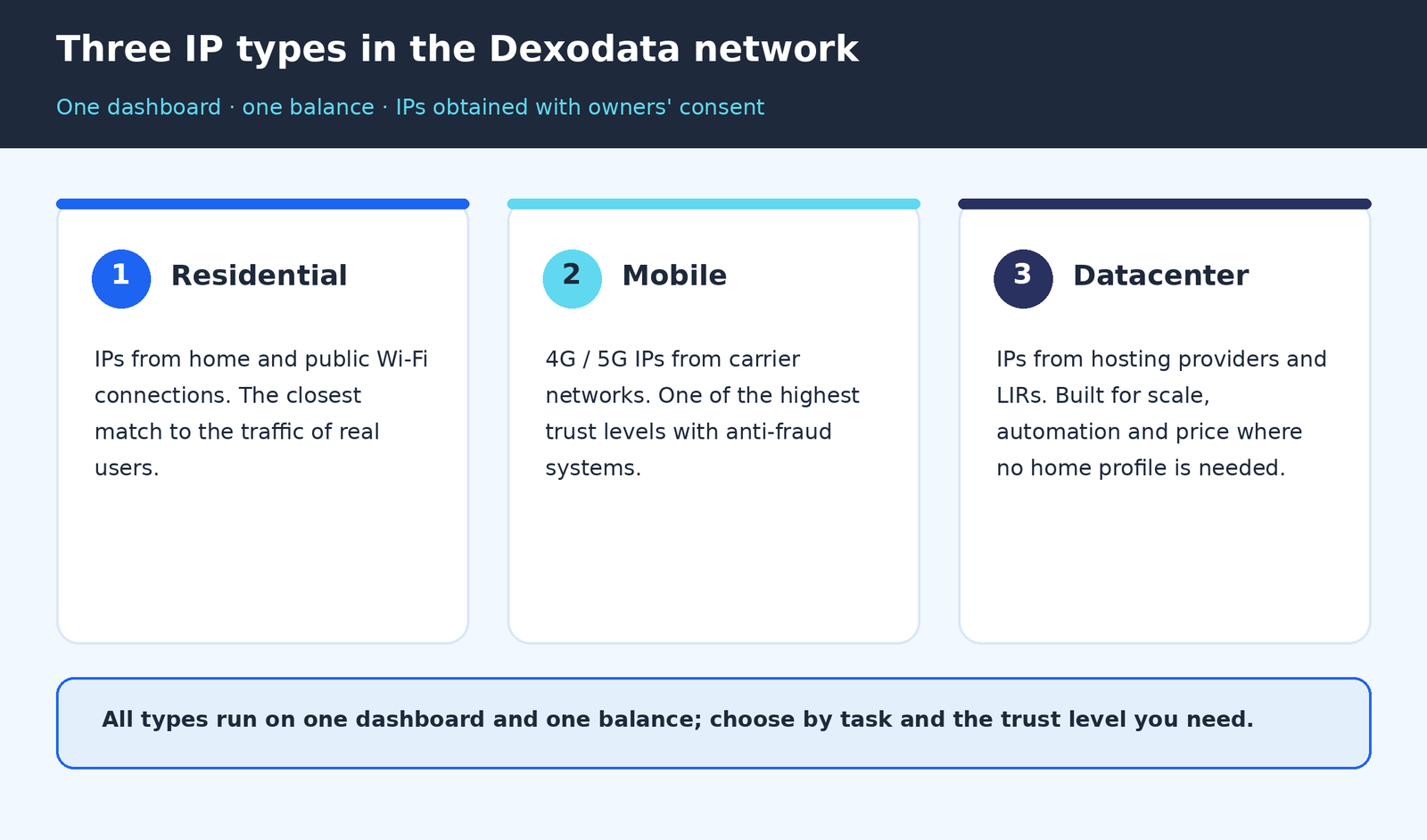
Fig. 1. Three IP types in the Dexodata network, all on one dashboard and one balance.
Geotargeting and IP relevance
For multi-accounting, the location of the IP matters as much as the IP itself. A local, relevant address makes a profile look like a real user of a specific network rather than a foreign visitor, so the site serves the same rankings, prices and offers that local users see. Dexodata targets by country, region, city and provider-level ISP, which lets you keep each profile consistent with the story it is supposed to tell.
IP change modes (rotation)
Dexodata offers three ways to change the IP, and the interface terms are used exactly as they appear: by time (the IP changes after a set interval), by link (it changes when you call a rotation URL) and on each request (a fresh IP for every outgoing request). For a long-lived Hidemium profile you usually keep one steady address; for collection tasks you lean on link-based or per-request rotation.
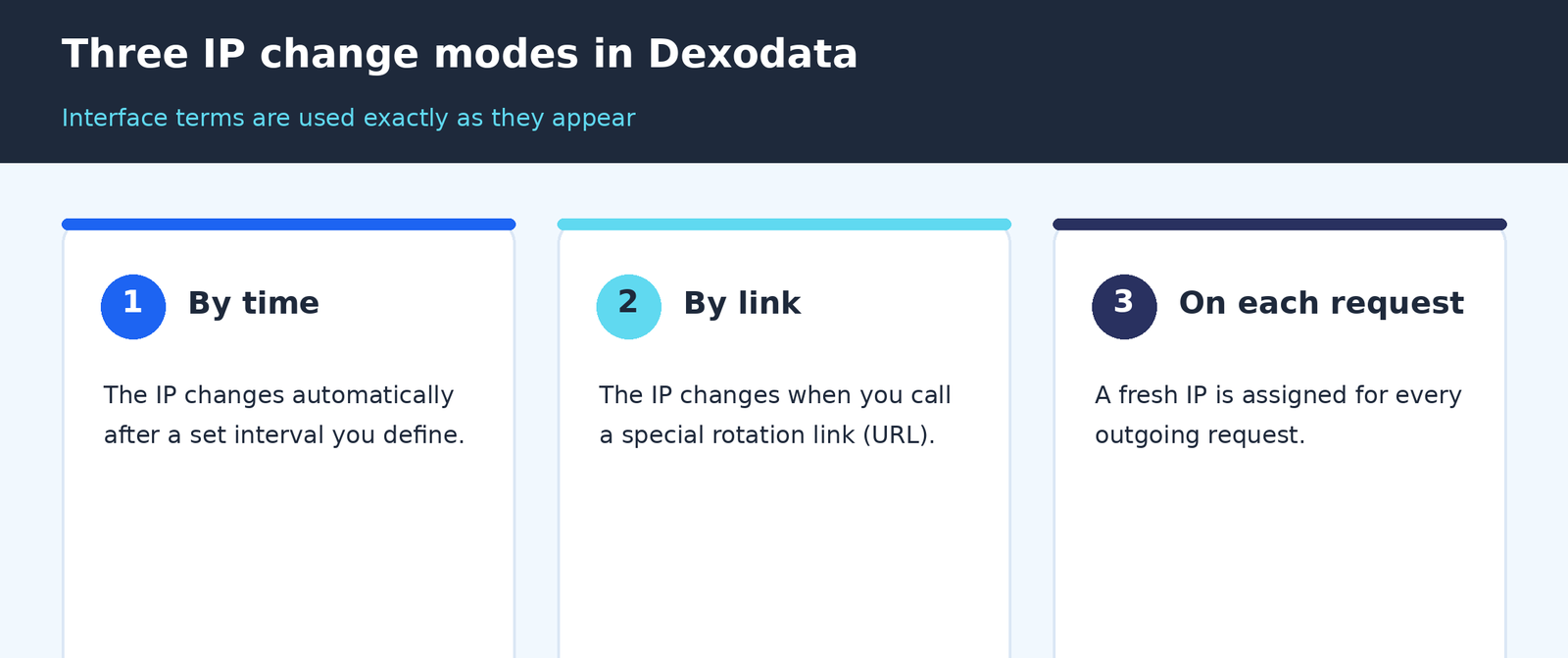
Fig. 2. Three IP change modes: by time, by link and on each request.
Two layers of one identity: the browser and the network
An antidetect browser and a proxy solve different halves of the same problem, and they only work when they agree. Hidemium handles the browser layer: it isolates cookies, randomizes canvas and spoofs the user-agent so each profile carries its own fingerprint. Dexodata handles the network layer: it supplies the matching IP exit with precise geo. Trouble starts when the fingerprint says one thing and the IP says another, for example a profile with a German browser locale riding a US datacenter address. Give each profile its own IP with geo that matches its fingerprint, and the two layers reinforce each other.
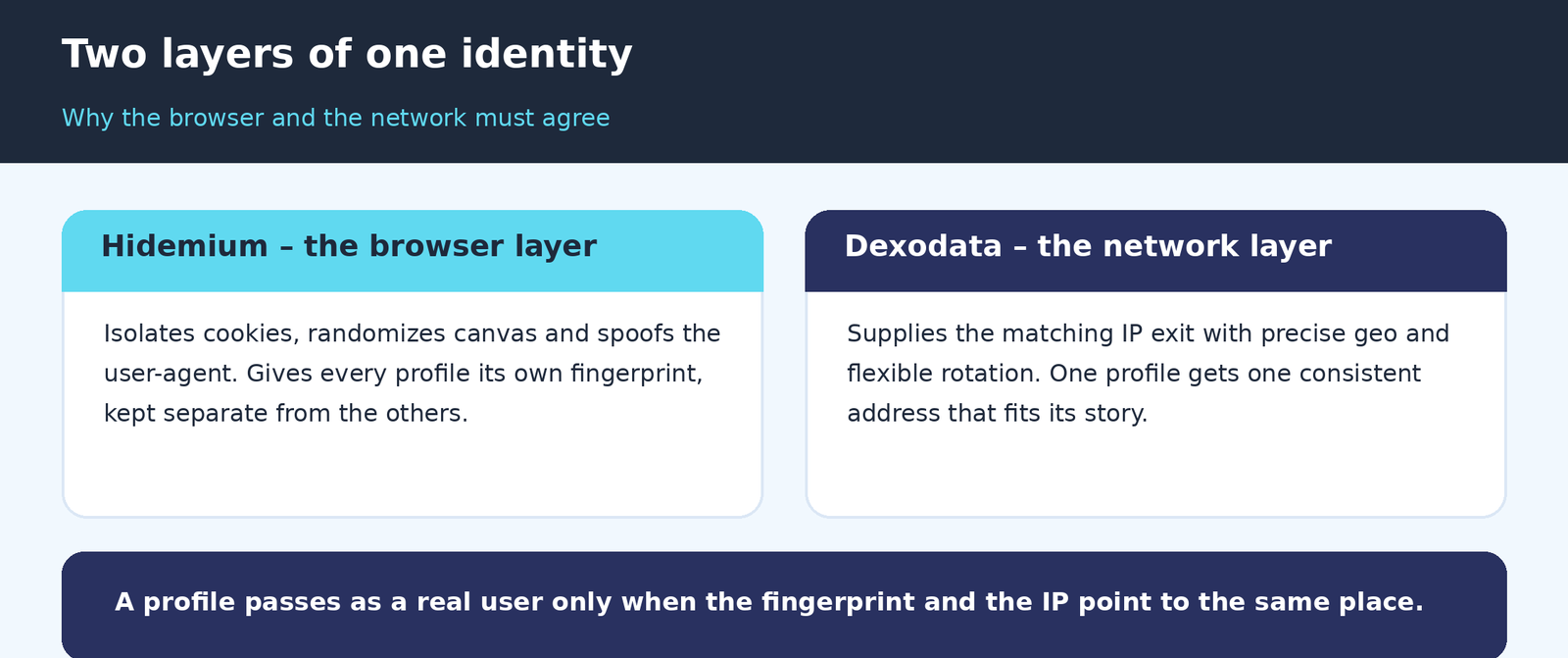
Fig. 3. The browser layer and the network layer have to point to the same place.
How to rent a port in Dexodata: step by step
In Dexodata you rent a port, and that port becomes the connection you paste into Hidemium. The whole path lives in the dashboard and takes a few clicks. The interface in the screenshots is in English.
Steps 1–2. On the dashboard, open the Ports section: the ports icon in the left menu (1), then the Ports card (2).
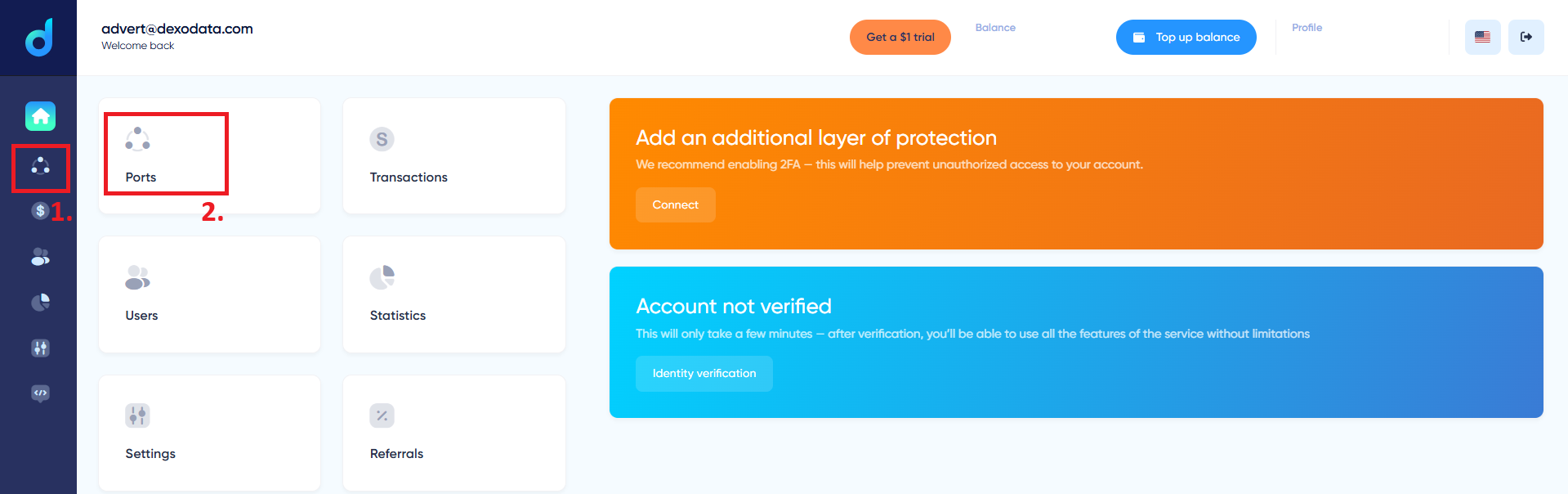
Fig. 4. Steps 1–2. Opening the Ports section from the dashboard.
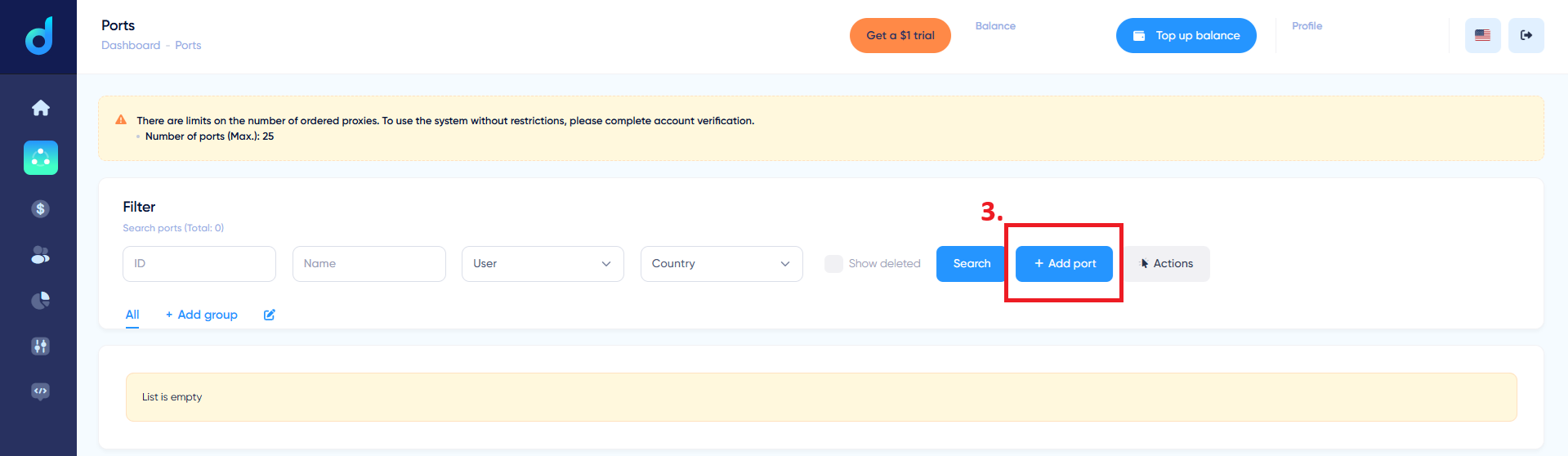
Step 3. On the Ports page, click + Add port (3). The limit without verification is shown here too, up to 25 ports.
 \
\
Fig. 5. Step 3. The + Add port button on the Ports page.
Step 4. The New port form opens. Set the Name and Count, the Authorization method (Login/Password, Automatic) and the IP change mode. The proxy type block (4) defaults to Residential / Home internet providers.
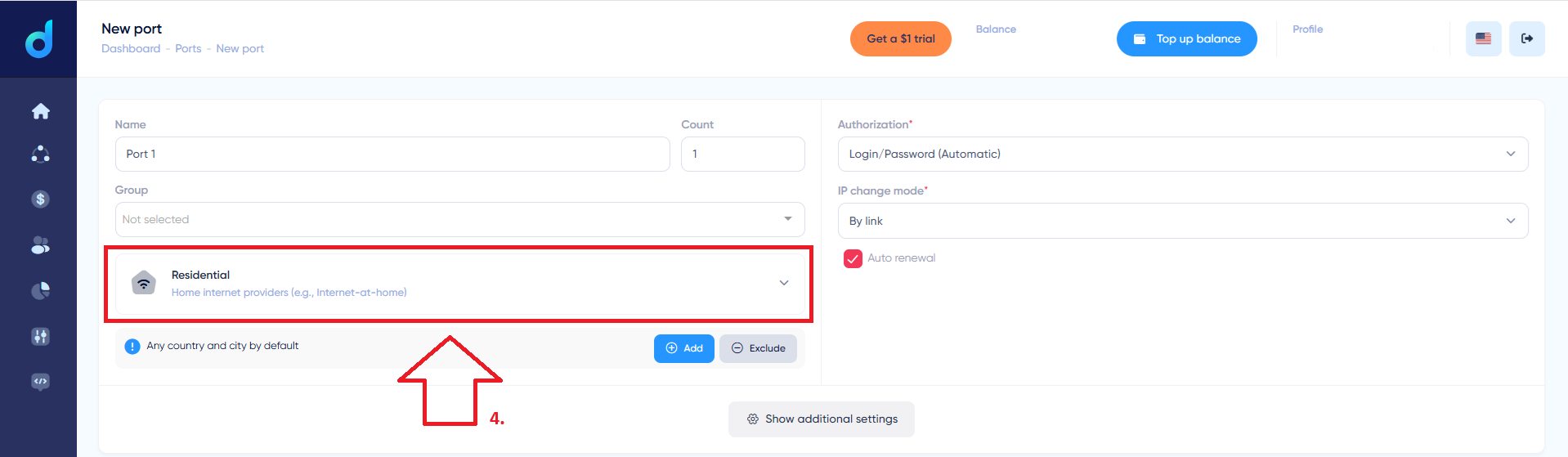
Fig. 6. Step 4. The New port form and the proxy type block.
Step 5. Expand the type list (5) and choose what you need: Residential (home internet providers), Datacenter (datacenter and hosting networks) or Mobile (mobile networks such as MTS, Tele2, Beeline).
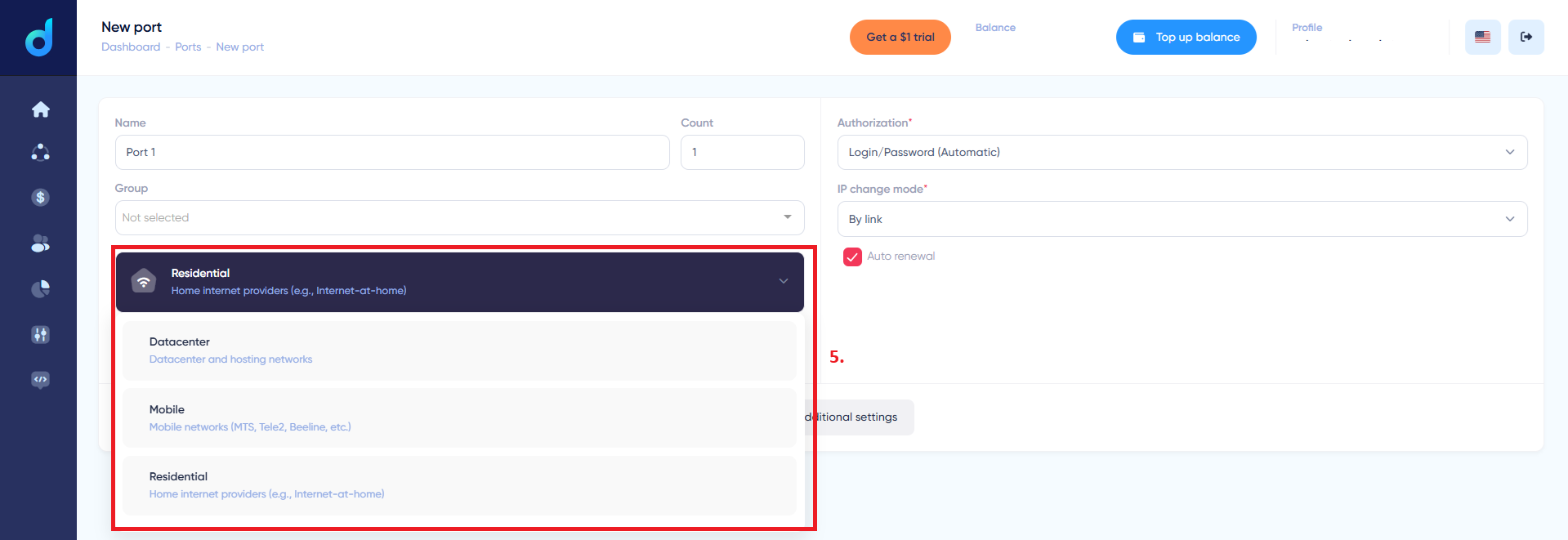
Fig. 7. Step 5. Choosing the proxy type: residential, datacenter or mobile.
Step 6. To set the geo, click Add (6) on the Any country and city by default row (or Exclude to leave out specific regions).
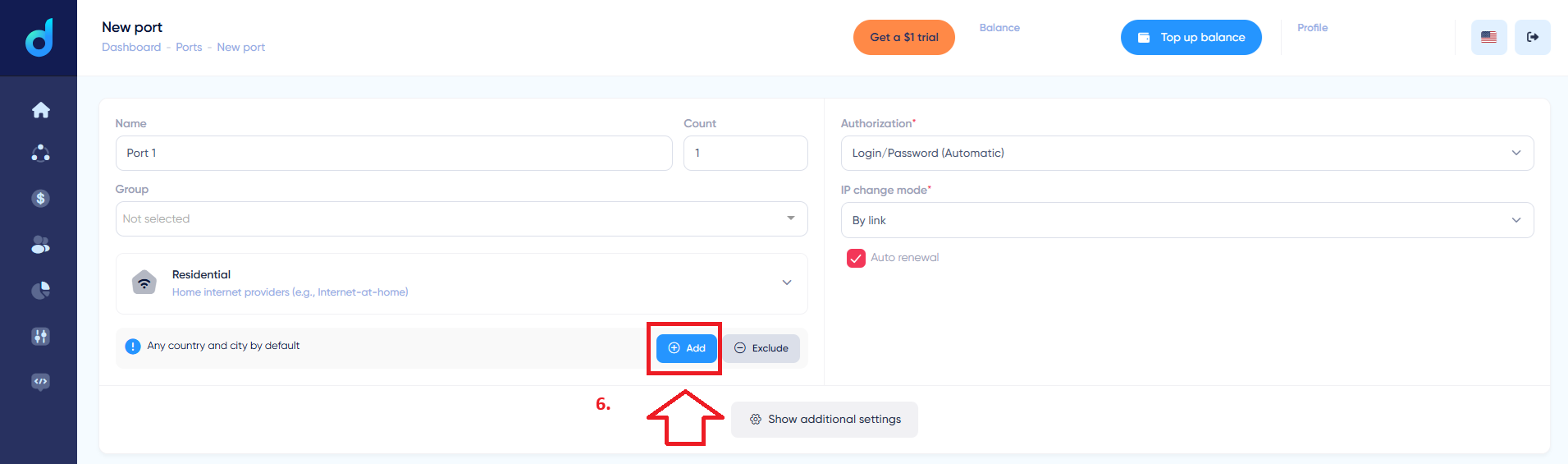
Fig. 8. Step 6. The Add button for geo settings.
Step 7. In the country list, pick the one you need, for example United States (7). Below, refine region, city and operator if the task calls for it.
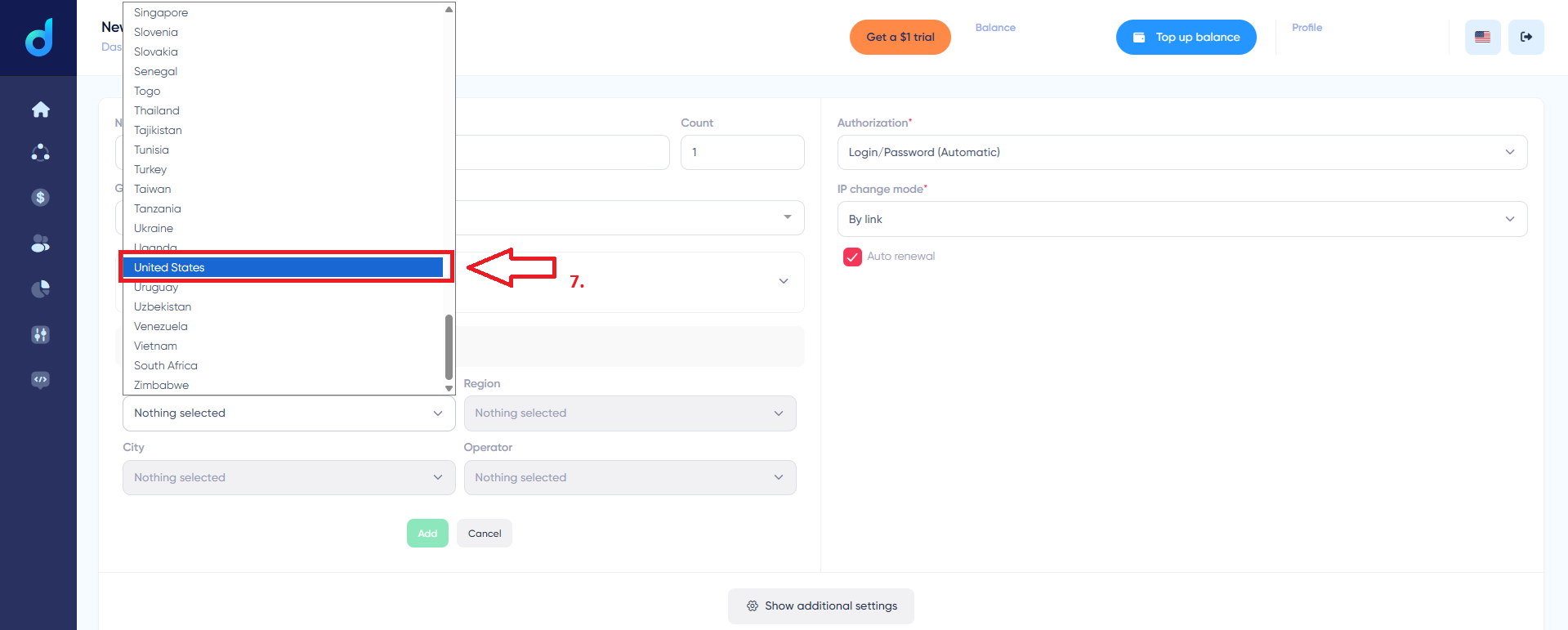
Fig. 9. Step 7. Selecting a country from the list.
Steps 8–10. In the IP change mode block (8), choose a mode from the list (9): By time, By link or On each request. The cost is shown at the bottom (for example, 0.03 Gt / ~$0.2), then click Order port (10). The port is ready, and its details are what you will paste into Hidemium.
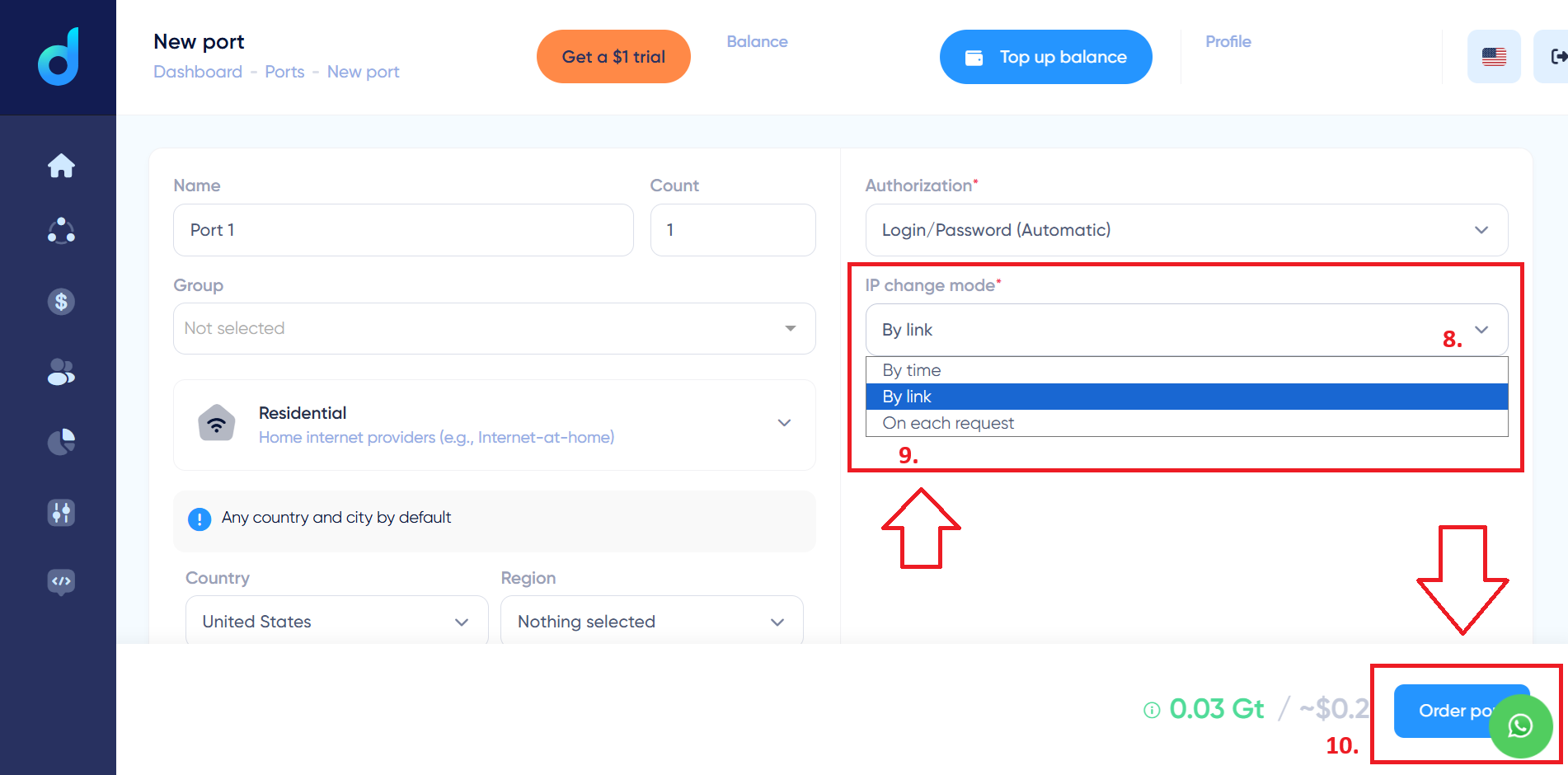
Fig. 10. Steps 8–10. Choosing the IP change mode and ordering the port.
Connecting your Dexodata port in Hidemium
With a port ordered in Dexodata, the rest happens in Hidemium, the antidetect browser that creates and isolates browser profiles. Keep the port's connection details from the dashboard at hand: the host, port and its login and password (these are the credentials for the port, not your Dexodata account login). The flow below goes from a new profile to a verified connection.
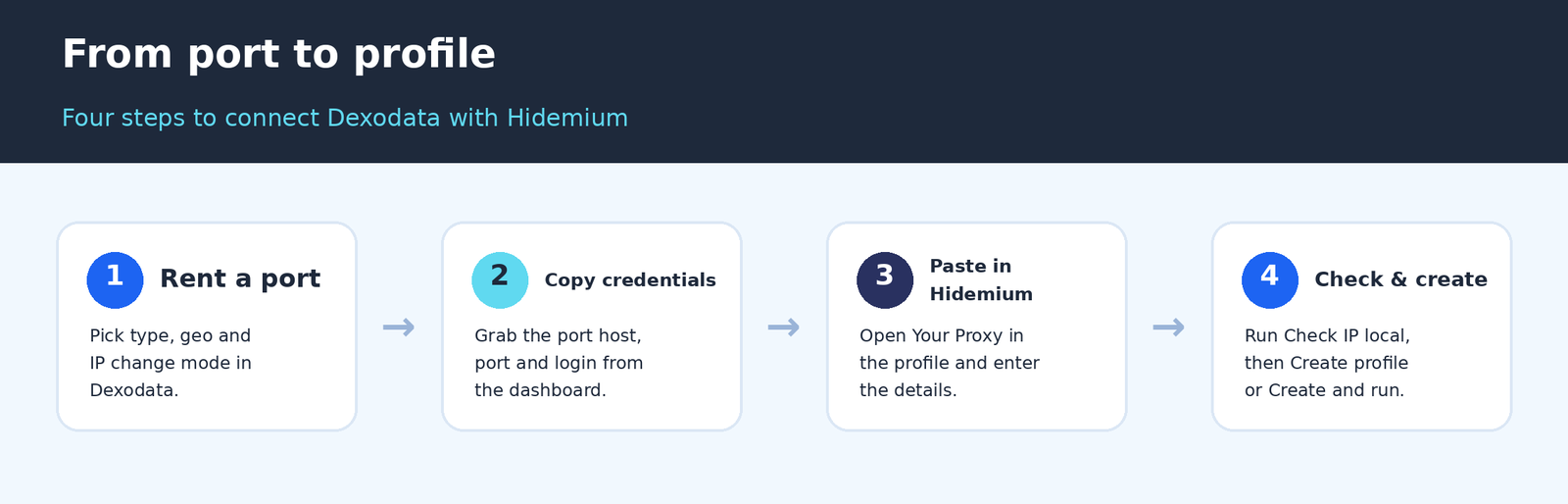
Fig. 11. From a Dexodata port to a running Hidemium profile in four steps.
Step 1. Open Hidemium and, on the Profiles screen, click Add Profile to start a new browser environment.
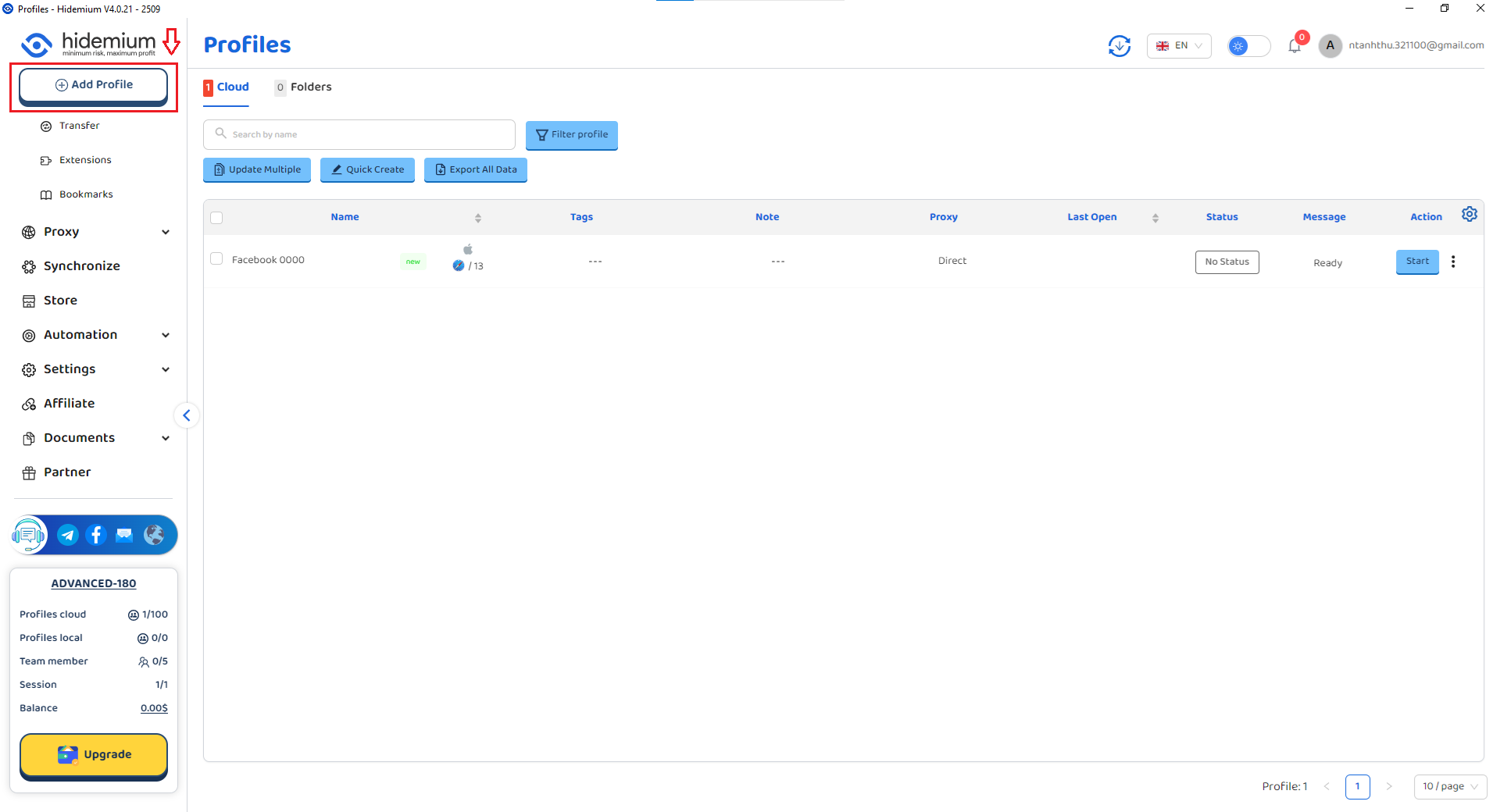
Fig. 12. The Profiles screen in Hidemium: click Add Profile to create a browser environment.
Step 2. On the Type step, pick the platform this profile is for (E-Business, Social Media, Payment, Crypto and more) or use Go to expert for a blank profile, then click Next.
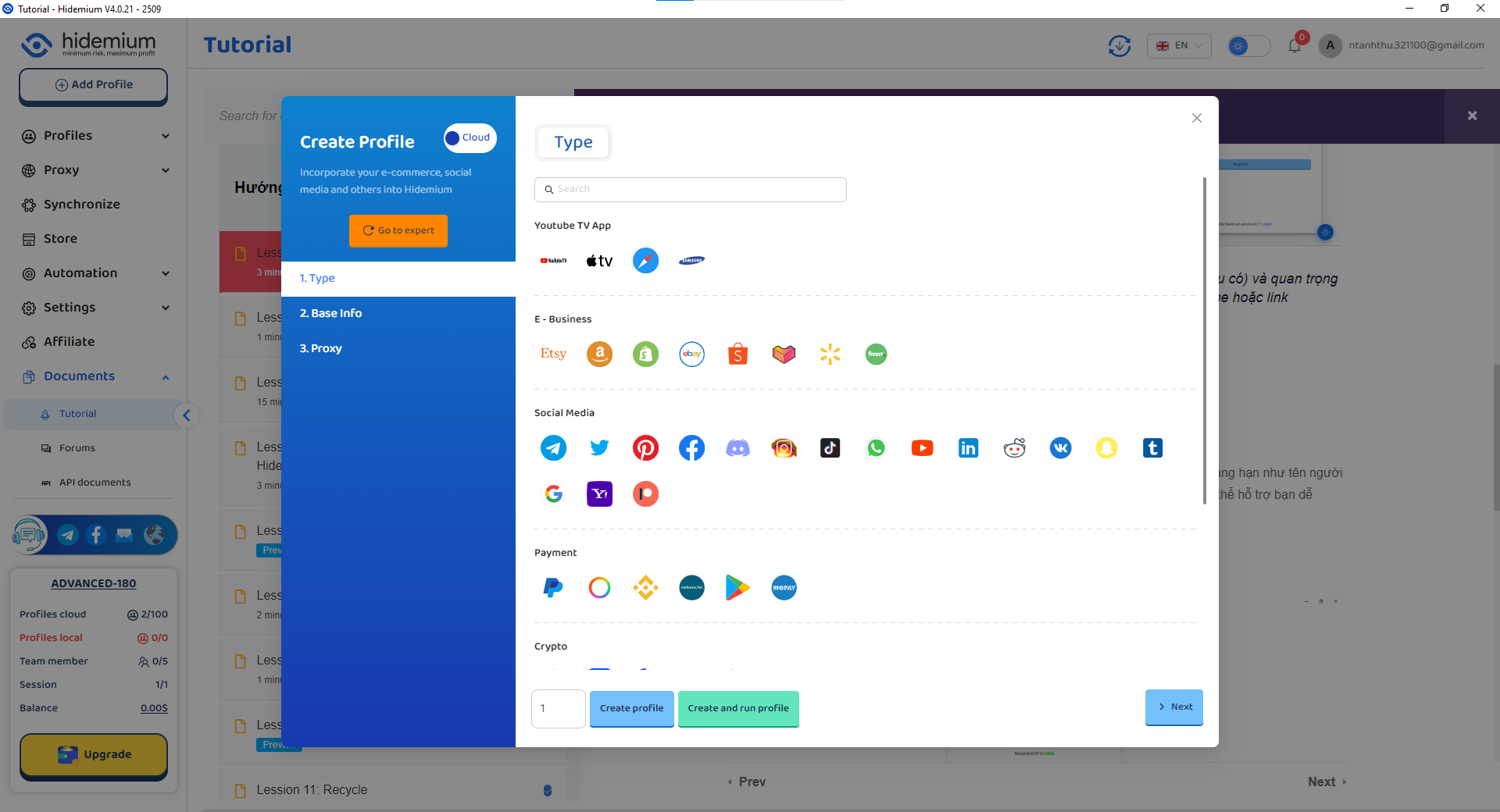
Fig. 13. Type step: choose the platform for the profile, then Next.
Step 3. On the Base Info step, give the profile a clear Name and, optionally, Notes. An easy-to-read convention such as DEXODATA-US-01 makes the profile list simple to scan later. Click Next.
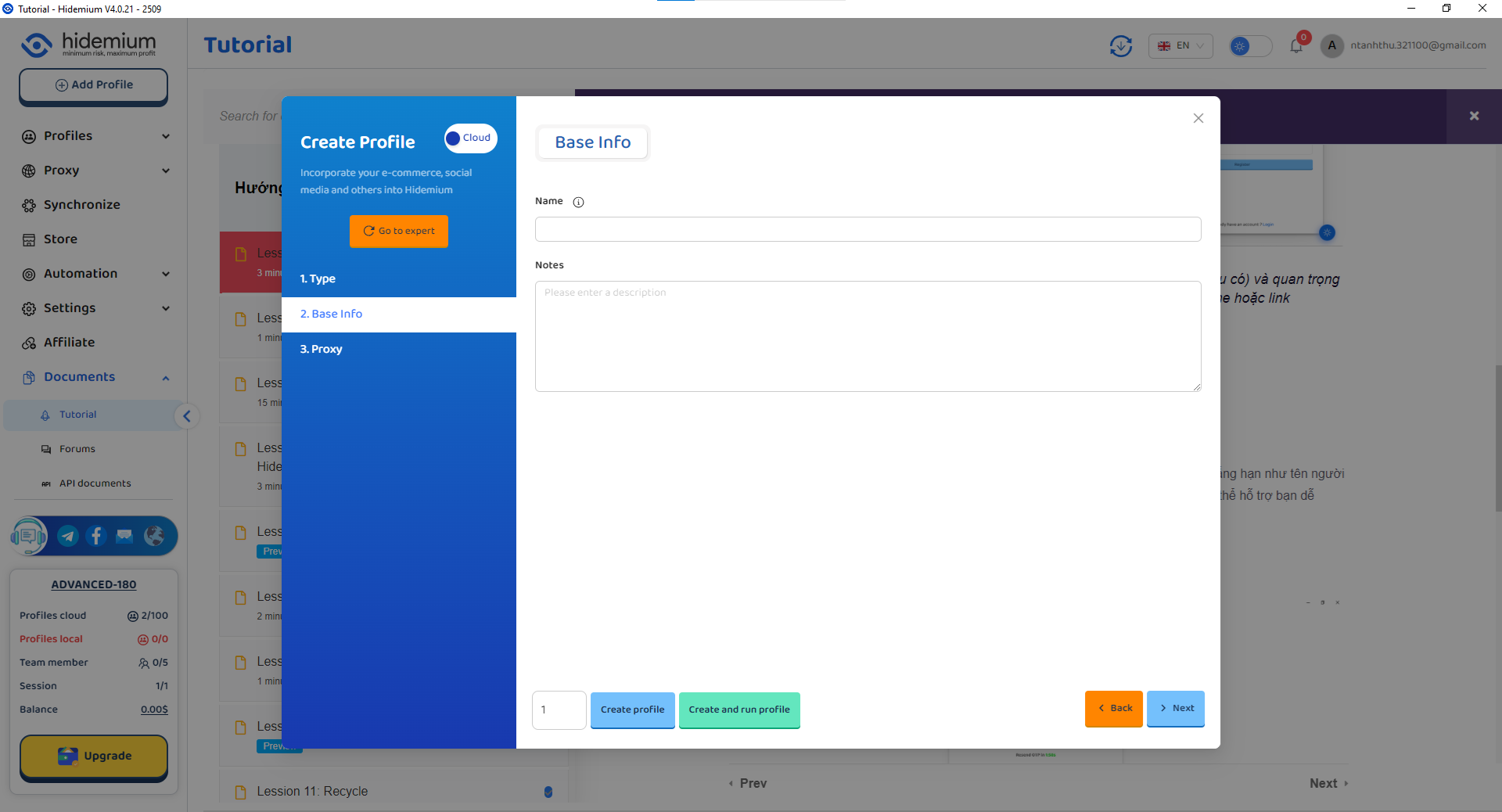
Fig. 14. Base Info step: set a clear Name and optional Notes.
Step 4. On the Proxy step, switch from Without Proxy to Your Proxy and enter the Dexodata port details in the Detail Proxy area. Click Check IP local to verify the connection, then choose Create profile, or Create and run profile to launch it right away.
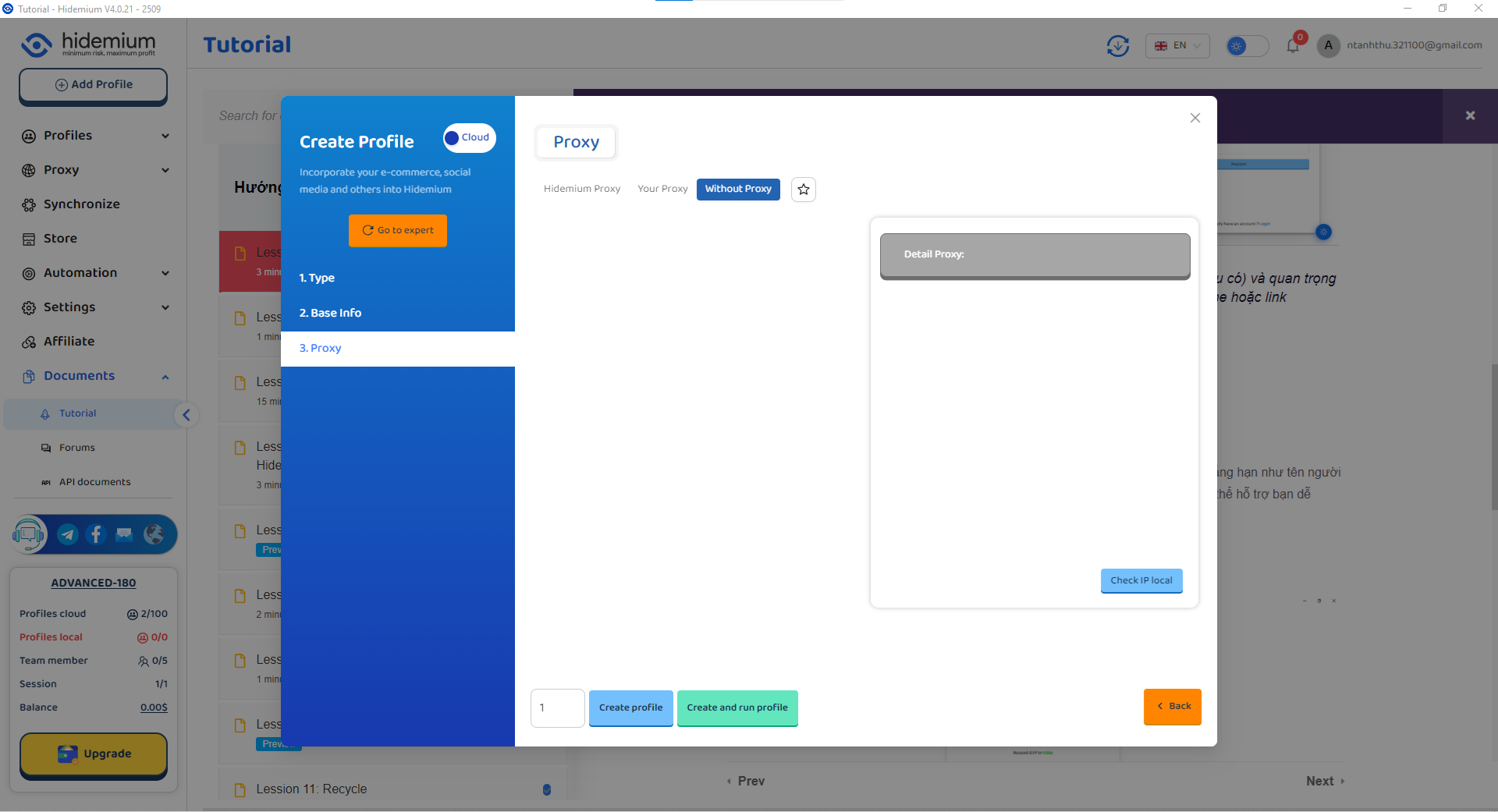
Fig. 15. Proxy step: choose Your Proxy, enter the port details and run Check IP local.
If the proxy check does not pass in Hidemium
A failed check is almost always the connection details, not the browser settings. Before changing anything about the profile, work through this short list:
- Protocol. Make sure the type selected in Hidemium matches the connection method of your Dexodata port.
- Host and port. Copy them again from the Dexodata dashboard instead of typing them by hand.
- Login and password. Use the port's own credentials, not your Dexodata account login.
- Port status and balance. If the port was removed or the tokenized balance ran out, the check can fail; top up and try again.
Why Dexodata and Hidemium work well together
Hidemium creates, isolates and manages the browser profiles, while Dexodata supplies the network exit each one rides on. The two layers are configured independently, so you can match them to the task.
- One profile, one address. Assign a single Dexodata port to a long-lived profile for a steady, easy-to-manage setup.
- Rotation where it helps. Use By link or On each request for tasks that need fresh IPs, without touching the browser fingerprint.
- Consistent geo. Country, region, city and provider-level targeting keep each profile's location aligned with its fingerprint.
- Cost that tracks usage. Pay-as-you-go on a tokenized balance means you pay for what a task actually consumes.
Conclusion
Hidemium keeps each browser profile's fingerprint separate, and Dexodata gives every profile a relevant residential, mobile or datacenter IP with precise geotargeting and flexible rotation. Rent a port, paste it into a profile's Your Proxy settings, verify with Check IP local, and the two layers work as one. You can start on a $1 balance, and the one-time promo code HIDEMIUM adds +5% to your deposit (valid until September 15, 2027).
Frequently asked questions (FAQ)
1. What proxy types does Dexodata offer for use with Hidemium?
Residential, mobile and datacenter IPs, all in one dashboard on a single balance. Residential IPs come from home and public Wi-Fi connections, mobile IPs from 4G/5G carrier networks, and datacenter IPs from hosting providers and LIRs, a cost-effective pick for large-scale automated tasks that need many server IPs.
2. How do I rent a Dexodata port?
On the dashboard open Ports, click + Add port, choose the proxy type, set the geo (country, region, city and operator if needed) and the IP change mode, then click Order port. The port details are what you connect in Hidemium.
3. Which IP change modes does Dexodata support?
Three, exactly as named in the interface: by time, by link and on each request. Keep a steady IP for long-lived profiles, and use link-based or per-request rotation for collection tasks.
4. How do I connect a Dexodata proxy in Hidemium?
Click Add Profile, pick a platform on the Type step, set a Name on Base Info, then on the Proxy step choose Your Proxy, enter the port host, port, login and password, run Check IP local and select Create profile or Create and run profile.
5. Why does the proxy check fail in Hidemium?
Usually a detail is off. Confirm the protocol matches the port, recopy the host and port from the dashboard, use the port's own login and password rather than your account login, and make sure the port is still active with a funded balance.
6. What tasks is the Dexodata and Hidemium setup good for?
Multi-accounting on social media and e-commerce, ad verification, price comparison, SERP and rank checks by region, and web scraping, each profile carrying its own fingerprint and its own matching IP.
Related Blogs
Two-factor authentication (2FA) is one of the most effective methods to protect your account from common security threats. In this article, Hidemium will guide you step-by-step through enabling 2FA on popular platforms, explaining why the feature is important and how it helps improve personal information security.1. What is 2FA? A Simple Explanation for BeginnersTwo-Factor Authentication (2FA) is[…]
.png)
Beyond the Bot: How to Humanize AI and Safely Bypass AI DetectionThe year 2026 has brought us to a strange crossroads. On one hand, we have large language models that can write poetry, code, and 3,000-word essays in the blink of an eye. On the other, we have an "AI police force"—detectors like Turnitin, Originality.ai, and GPTZero—that are getting increasingly aggressive.If you’re a student or a[…]

When managing multiple accounts on the same device, many individuals and businesses face issues such as unstable profiles and frequent account suspensions due to overlapping fingerprints, IP addresses, or behavioral patterns. This is where Antidetect Browsers become a foundational solution—giving each account its own distinct “digital identity,” enabling more stable operation and making detection[…]

What is Turbo VPN is the question many people ask when looking for a tool to help personal information security and Bypass regional content access restrictionsIn this article, Antidetect Browser Hidemium will explore Turbo VPN in detail with you - from concept, outstanding features to how to use it effectively on devices like Windows, Android and iOS.1. What is Turbo VPN?Turbo VPN is a trusted[…]

1. What is DNS Encryption?DNS encryption is a security technology that protects domain name queries when you visit websites. Instead of sending plain-text requests, your DNS queries are encrypted to prevent third-party tracking or interference. This is a key method to enhance online privacy and security.>>> Learn more: Latest Viettel DNS & How to change DNS to improve Internet speed2. Why Does[…]
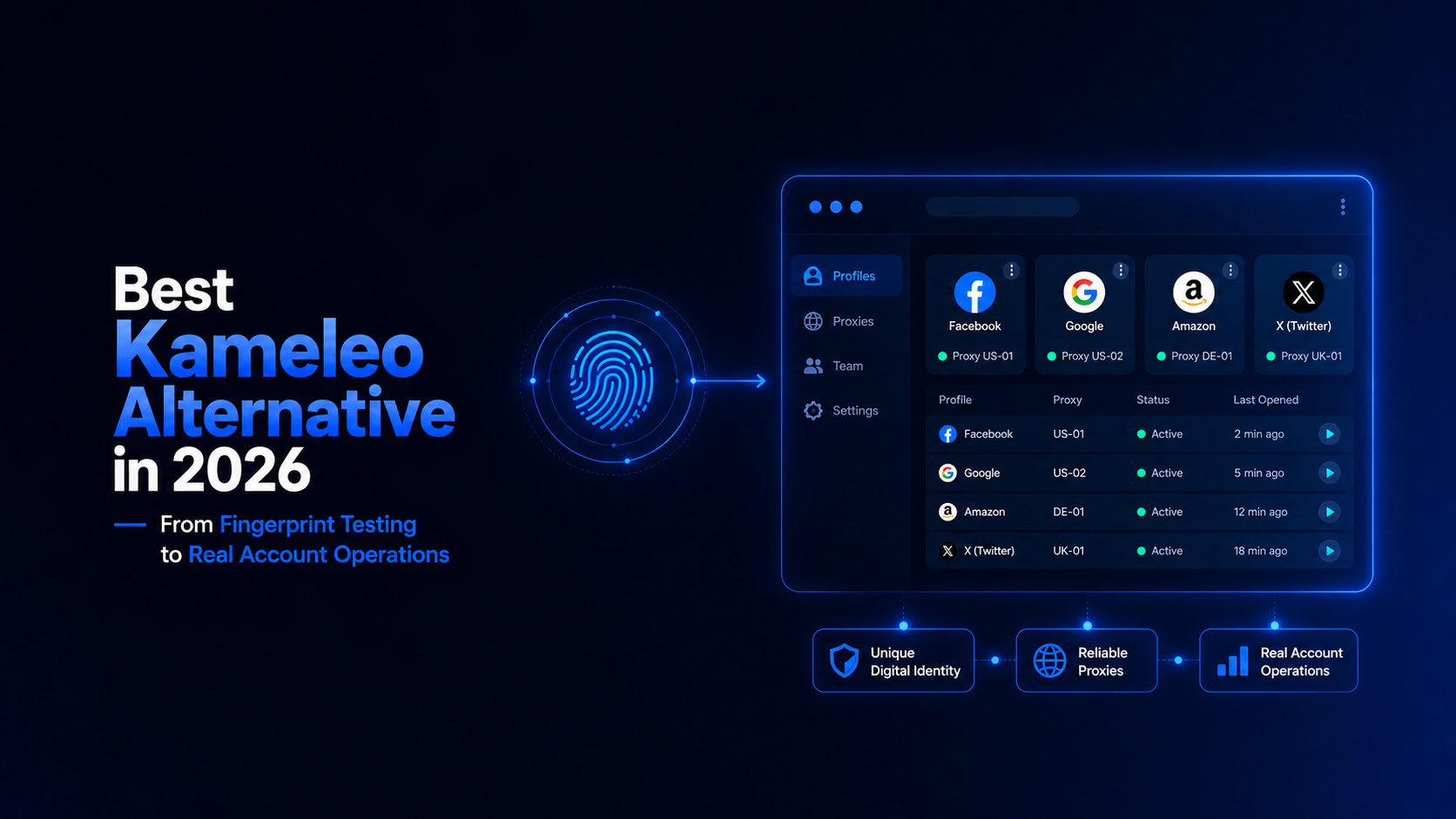
Best Kameleo Alternative in 2026: From Fingerprint Testing to Real Account OperationsThe best Kameleo alternative in 2026 is Hidemium for teams that need more than browser fingerprint testing. Hidemium is a practical browser profile platform for managing profiles, proxies, workspaces, team access, and scalable account operations in one organized system.Kameleo can be useful for users focused on[…]
